
Create your mapboard, upload your mapdata and share
The Javascript library allows you to retrieve and display your mapdata once they’ve been uploaded through Youmaps. Once your mapboard is ready, share it with your technical account so you can use it through the JavaScript library.
Authorized URLs
In order to use the Youmaps JavaScript library in your web site or application, you need to define a list of authorized URLs in Youmaps Studio.
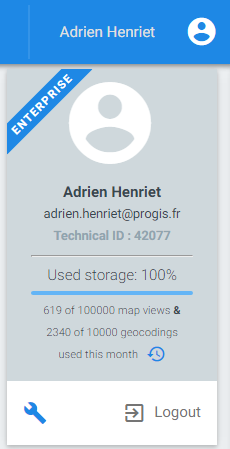
To do so, you need to click on the "user" icon at the top right of the screen, and then click on the "settings" icon :
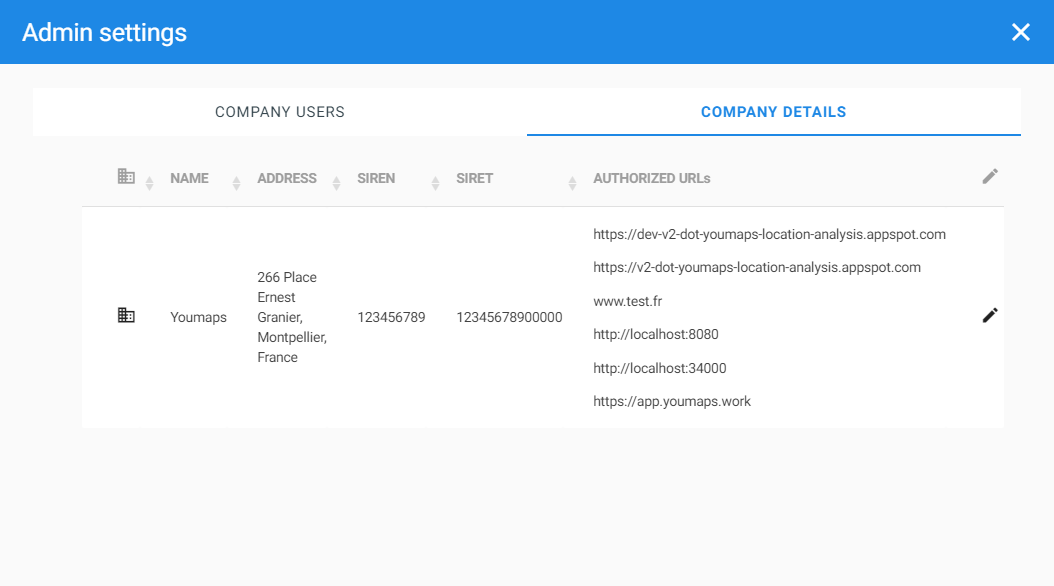
At this point you can edit your authorized URLs by clicking on the "Company details" tab and then on the "edit" icon.
Getting the JavaScript library
Let’s start using the JavaScript library.
First, load the library through this link in your HTML.
Initialization
Once you've retrieved the library, you have to initialize it.
Overview
The Youmaps JavaScript library is initialized as follows using your technical ID :
var mapOptions = {
		center : new google.maps.LatLng(48.858386, 2.343435), // Paris,
		zoom : 11,
		minZoom : 6,
		maxZoom : 17,
		styles : mapStyles
	};

var youmapsApi = new YoumapsAPI(
  {
    techID : <YOUR_TECH_ID>,
    licenseKeyType : <Constant.INTERNAL_LICENSE_KEY_TYPE||EXTERNAL_LICENSE_KEY_TYPE>
    initMapboards : true,
    mapDivId : <YOUR_GOOGLE_MAP_DIV_ID>,
    mapOptions : mapOptions,
    showDrawingGeometries : true
  },
  onYoumapsApiLoad
);
Youmaps library constructor
The YoumapsAPI constructor allows you to specify 2 parameters.
The first one, in JSON format, contains the following fields :
- techID : your technical account ID. Click here to learn how to retrieve it.
- initMapboards : true or false. False if you do not want to load all mapboards shared with the technical account at initialization time. Keep in mind though that you will have to load them manually later on if you intend to access their data. If set to true, all mapboards that have been shared with the technical account are loaded.
- mapDivId : the id of the HTML division where you want the Google map to be loaded.
- mapOptions (optional) : the options you wish to apply to your Google map. Take a look to Google's online documentation to get to know these options.
- showDrawingGeometries(optional) : ( true or false ) if you want to show the geometries created in your mapboards. default value : false
The second parameter (optional) allows you to specify a method that will be called (callback) once the library has been fully initialized.
Try it yourself
The sample below shows all the code needed to initialize the JavaScript library and create a map.
Don't forget to add this CSS file too, since it is needed to ensure that the tiles are rendered correctly on the map.
We name it style.css.
/**** Set all parent containers to a 100% width if we want the map to cover the whole page ****/

html, body {
  height: 100%;
  width: 100%;
}

/**** MAP ****/

#map {
  height: 100%;
  width: 100%;
}

/**** TILES ****/

div.tiles-layer {
  position: absolute;
  left: 0;
  top: 0;
}

canvas.tile {
  position: absolute;
}

/**** LEGEND ****/

#legend {
	width: 264px;
	height: auto;
	max-height: 335px;
	position: absolute;
	background: white;
	right: 0px;
	top: 28%;
	display: flex;
	z-index: 1;
	font-family : Roboto;
	font-size: 0.88rem;
}

.z-depth-1 {
    box-shadow: 0 2px 5px 0 rgba(0,0,0,0.16),0 2px 10px 0 rgba(0,0,0,0.12);
}

.white {
    background-color: #FFFFFF !important;
}

.closedLegend {
	width: 30px !important;
	overflow: hidden;
}

#legend .legendOpenClose {
	width: 32px;
	min-height: 100%;
	margin: 0px;
	padding: 0px;
	vertical-align: top;
	cursor: pointer;
}

.blue.darken-1 {
    background-color: #1E88E5 !important;
}

.valign-wrapper {
    display: -webkit-box;
    display: -moz-box;
    display: -ms-flexbox;
    display: -webkit-flex;
    display: flex;
    -webkit-flex-align: center;
    -ms-flex-align: center;
    -webkit-align-items: center;
    align-items: center;
}

.blue {
    background-color: #2196F3 !important;
}

#legend .legendOpenClose i {
    margin: -1px;
    font-size: 2.3rem;
}

.valign-wrapper .valign {
    display: block;
}

.white-text {
    color: #FFFFFF !important;
}

.legendClose {
	margin: -2px;
	-ms-transform: rotate(180deg); /* IE 9 */
    -webkit-transform: rotate(180deg); /* Chrome, Safari, Opera */
    transform: rotate(180deg);
}

#legend .legendInformation {
	display: inline-block;
	width: calc(100% - 30px);
	height: 100%;
	max-height: 335px;
	margin: 0px;
	padding: 0px;
	vertical-align: top;
	overflow-y: auto;
}

#legend .legendInformation ul.legendList {
	list-style-type: none;
    padding: 8px 16px;
    margin: 0px;
}

.truncate {
    display: block;
    white-space: nowrap;
    overflow: hidden;
    text-overflow: ellipsis;
}

#legend .legendInformation ul.legendList li ul.legendByAttributeList {
    margin: 0px 0px 0px 28px;
}

#legend .legendInformation ul.legendList li {
    margin: 8px 0px;
}

#legend .legendInformation ul.legendList li span.legendItem {
    display: inline-block;
    vertical-align: middle;
    margin: 0px 8px 0px 0px;
}

#legend .legendInformation ul.legendList li span.legendItemPolygon {
   	width: 16px;
    height: 16px;
    border-radius: 2px;
    background: red;
}

#legend .legendInformation ul.legendList li span.legendItemPolyline {
    width: 16px;
    height: 3px;
}

#legend .legendInformation ul.legendList li span.legendItemRaster {
    width: 16px;
    height: 16px;
    background-image: url(../images/legendItemRaster.svg);
    background-repeat: no-repeat;
    background-size: 130%;
    background-position: center;
}

#legend .legendInformation ul.legendList li span.legendItemStyleByAttribute {
    width: 16px;
    height: 16px;
    background-image: url(../images/legendItemStyleByAttribute.svg);
    background-repeat: no-repeat;
    background-size: 130%;
    background-position: center;
}

#legend .legendInformation ul.legendList li span.legendItemThematic {
    width: 16px;
    height: 16px;
    background-image: url(../images/legendItemThematic.svg);
    background-repeat: no-repeat;
    background-size: 130%;
    background-position: center;
}

.legendItem img {
    width: 16px;
    height: auto;
    vertical-align: middle;
    text-align: center;
}

*, *:before, *:after {
    box-sizing: inherit;
}
As you may have noticed in the file above, there is also a bit of code specific to the legend.
If you wish to enable it, make sure you include the 3 following SVGs in your project. You'll need to add them to an images folder, that must be at the same level as your HTML file :
Here is a JavaScript file (let's name it mapStyle.js) to include if you wish to get the same map style that is used on Youmaps Engine.
var mapStyles = [
  {
		featureType : "landscape",
		stylers : [ {
			saturation : -100
		}, {
			lightness : 65
		}, {
			visibility : "on"
		} ]
	}, {
		featureType : "poi",
		stylers : [ {
			saturation : -100
		}, {
			lightness : 51
		}, {
			visibility : "off"
		} ]
	}, {
		featureType : "poi.business",
		stylers : [ {
			color : "#78909C"
		}, {
			saturation : -100
		}, {
			lightness : 40
		}, {
			visibility : "simplified"
		} ]
	}, {
		featureType : "poi.park",
		stylers : [ {
			color : "#B0BEC5"
		}, {
			saturation : -100
		}, {
			lightness : 60
		}, {
			visibility : "simplified"
		} ]
	}, {
		featureType : "poi.park",
		elementType : "labels",
		stylers : [ {
			color : "#B0BEC5"
		}, {
			saturation : -100
		}, {
			lightness : -15
		}, {
			visibility : "simplified"
		} ]
	}, {
		featureType : "road.highway",
		stylers : [ {
			hue : "#1e88e5"
		}, {
			saturation : -75
		}, {
			lightness : 30
		}, {
			visibility : "simplified"
		} ]
	}, {
		featureType : "road.highway",
		elementType : "labels",
		stylers : [ {
			hue : "#1e88e5"
		}, {
			saturation : 100
		}, {
			lightness : 0
		}, {
			visibility : "simplified"
		} ]
	}, {
		featureType : "road.arterial",
		stylers : [ {
			saturation : -100
		}, {
			lightness : 5
		}, {
			visibility : "on"
		} ]
	}, {
		featureType : "road.local",
		stylers : [ {
			saturation : -100
		}, {
			lightness : 15
		}, {
			visibility : "on"
		} ]
	}, {
		featureType : "transit",
		stylers : [ {
			saturation : -100
		}, {
			visibility : "off"
		} ]
	}, {
		featureType : "administrative.province",
		stylers : [ {
			visibility : "off"
		} ]
	}, {
		featureType : "water",
		elementType : "labels",
		stylers : [ {
			visibility : "on"
		} ]
	}, {
		featureType : "water",
		elementType : "labels.text.fill",
		stylers : [ {
			visibility : "on"
		}, {
			color : "#37474F"
		} ]
	}, {
		featureType : "water",
		elementType : "geometry",
		stylers : [ {
			color : "#607D8B"
		}, {
			saturation : -40
		} ]
}];
Below is our index.js file, where YoumapsAPI is initialized.
Gapi client callback
Please note that you'll have to wait until the gapi client is fully loaded before you can initialize YoumapsAPI. As explained in Prerequisites, you can specify a callback method which will be called once the gapi client is loaded.
/******* GLOBAL VARIABLES AND CONSTANTS *******/

/** Youmaps API instance **/
var youmapsApi;

/**
 * Initializes all the API clients.
 * This method has to contain the code below.
 * The only code you may change is the code within the "if (--apisToLoad == 0)"
 * clause
 **/
function onGapiClientLoad(){
	var callback = function() {
		if (--apisToLoad == 0) {
			console.log("All APIs loaded.");
			initialize();
		}
	}
	var apisToLoad = 3; // must match number of calls to gapi.client.load()
	gapi.client.load(Constant.TILEMANAGER_API_NAME, Constant.TILEMANAGER_API_VERSION, callback, Constant.API_ROOT);
	gapi.client.load(Constant.MARKERLAYERMANAGER_API_NAME, Constant.MARKERLAYERMANAGER_API_VERSION, callback, Constant.API_ROOT);
	gapi.client.load(Constant.YOUMAPS_API_NAME, Constant.YOUMAPS_API_VERSION, callback, Constant.API_ROOT);
}

/**
 * Initializes the map.
 * Runs a callback function once the map is created.
 */
function initialize() {
	var mapOptions = {
		center : new google.maps.LatLng(48.858386, 2.343435), // Paris,
		zoom : 11,
		minZoom : 4,
		maxZoom : 17,
		styles : mapStyles
	};

	 youmapsApi = new YoumapsAPI({
	    	techID : <YOUR_TECH_ID>,
        licenseKeyType : <Constant.INTERNAL_LICENSE_KEY_TYPE||EXTERNAL_LICENSE_KEY_TYPE>
	    	initMapboards : true,
				mapDivId : "map",
				mapOptions : mapOptions
	    },
	    onYoumapsApiLoaded
  	);
}

/**
 * Callback method.
 * Called when YoumapsAPI is loaded.
 **/
function onYoumapsApiLoaded(){
	console.log("YoumapsAPI loaded!");
	youmapsApi.displayMapdata(<MAPDATA_ID>);
}
Finally, here's how our index.html file looks like once we've included the files above.
Let's suppose mapStyle.js and index.js are in a "js" directory and style.css in a "css" directory.
The order in which your scripts are loaded here is important, especially when loading the gapi client. The callback method (onGapiClientLoad) has to be defined before the gapi client script is added to your HTML file. In our case, onGapiClientLoad is defined in the index.js file, shown above.
If you copy and paste this code sample, don't forget to set your Google Maps API key.
<!DOCTYPE html>
<html>
<head>

<!-- jQuery -->
<script type="text/javascript" src="https://code.jquery.com/jquery-2.2.4.min.js"></script>

<!-- Google Maps API -->
<script type="text/javascript" src="https://maps.googleapis.com/maps/api/js?libraries=places,geometry&key=<YOUR_KEY>"></script>

 <!-- Marker Clusterer -->
<script type="text/javascript" src="https://youmaps-eu.appspot.com/engine/js/external/markerclusterer.js"></script>
<script type="text/javascript" src="https://youmaps-eu.appspot.com/engine/js/external/markerclusterer_packed.js"></script>

<!-- Marker Cluster Text Color -->
<script type="text/javascript" src="https://youmaps-eu.appspot.com/engine/js/external/tinycolor.min.js"></script>

<!-- Crypto JS -->
<script type="text/javascript" src="https://youmaps-eu.appspot.com/engine/js/external/CryptoJS-3.1.2/rollups/aes.js"></script>
<script type="text/javascript" src="https://youmaps-eu.appspot.com/engine/js/external/CryptoJS-3.1.2/rollups/pbkdf2.js"></script>

<!-- Chroma -->
<script type="text/javascript" src="https://youmaps-eu.appspot.com/engine/js/external/chroma.min.js"></script>

<!--  Youmaps JavaScript library v2 -->
<script type="text/javascript" src="https://youmaps-eu.appspot.com/engine/js/youmaps-v2.min.js"></script>

<!-- Google Map Style -->
<script type="text/javascript" src="js/mapStyle.js"></script>

<!-- index.js -->
<script type="text/javascript" src="js/index.js"></script>

<!-- API Client -->
<script type="text/javascript" src="https://apis.google.com/js/client.js?onload=onGapiClientLoad"></script>

<!-- style.css -->
<link rel="stylesheet" href="css/style.css"/>

<meta charset="UTF-8">

</head>

<body>
  	<div id="map"></div>
</body>
</html>